How to Enlarge a Photo to Print Across Multiple Pages
A photographic print on a wall has a quality no digital screen can replicate. Light reflects off it instead of emitting through it, the colours look material rather than luminous, and a good print at a meaningful size becomes part of the room rather than a window into one. The downside is cost — a professional A1 photographic print from a lab in 2026 runs €40-80 in most European cities, and a professional A0 print runs €80-150. For a family portrait, a wedding photo, a landscape from a trip, or a hand-drawn artwork that you want at exhibition scale, the lab cost adds up fast.
Tiled home printing is a real alternative. A 12-megapixel photograph (most modern phones produce these) tiled across an A1 assembly on a home inkjet costs about €3-5 in paper and ink, takes 30-45 minutes of printer time, and produces a print that — at viewing distance of 1-2 metres — is hard to distinguish from a lab print to non-expert eyes. The seam structure is visible on close inspection but not at normal viewing distance, and the print is excellent for casual display, classroom or office use, or any context where exhibition-grade quality is not the requirement.
This guide is about enlarging photos for tiled printing on a Mac home printer. It covers the DPI math that determines what photo size enlarges well, the paper and ink choices that affect the result, the realistic limits of what consumer printers can produce, and the workflow on Mac using XLPrinter as the running example.
The DPI Math: What Resolution Does Your Photo Need?
The most important number for photo enlargement is dots per inch (dpi) at the assembled print size. This number determines whether the print looks crisp and photographic or pixelated and obvious.
The reference numbers, drawn from the photo printing industry’s standard practices:
- 300 dpi: photographic quality. Indistinguishable from a lab print at any viewing distance. The standard for photo books, fine art prints, and professional display.
- 200 dpi: very good quality. Hard to distinguish from 300 dpi at normal viewing distances; some softness visible at close inspection.
- 150 dpi: good quality for posters and prints viewed at 0.5+ metre distance. Pixelation barely visible.
- 100 dpi: acceptable for prints viewed at 1+ metre distance. Pixelation visible at close inspection but not at viewing distance.
- 75 dpi: noticeable pixelation at any viewing distance. Acceptable only for very large prints viewed from far away (back wall of a hall, etc.).
- 50 dpi or below: pixelation is the dominant visual feature. Avoid for photo work.
To calculate the dpi at a given assembled size:
Photo dpi = Photo pixel dimension ÷ Print dimension in inches
For a 4032 × 3024 pixel photo (a typical iPhone capture) printed at A1 size (23.4 × 33.1 inches):
- Horizontal dpi = 4032 / 33.1 = 122 dpi
- Vertical dpi = 3024 / 23.4 = 129 dpi
Both are above 100 dpi, comfortably in the “acceptable for distance viewing” range. The same photo at A0 (33.1 × 46.8 inches):
- Horizontal dpi = 4032 / 46.8 = 86 dpi
- Vertical dpi = 3024 / 33.1 = 91 dpi
Below 100 dpi. The print will show pixelation visible at close inspection, though it may still be acceptable from across the room.
For a 12MP iPhone photo (4032 × 3024), the assembled sizes that maintain 100+ dpi:
- A2 (16.5 × 23.4 inches): 172 dpi horizontal, 183 dpi vertical — comfortably good.
- A1 (23.4 × 33.1 inches): 122/129 dpi — acceptable.
- A0 (33.1 × 46.8 inches): 86/91 dpi — marginal.
For a 24MP camera photo (6000 × 4000), the same sizes:
- A2: 256/256 dpi — very good.
- A1: 181/171 dpi — very good.
- A0: 128/121 dpi — acceptable, approaching good.
For a 50MP medium-format or high-end DSLR photo (8688 × 5792):
- A1: 263/247 dpi — very good, approaching photographic.
- A0: 186/175 dpi — very good.
The pattern is clear: the source resolution sets a hard ceiling on the assembled print size that maintains photographic quality. For most phone photos, A1 is the practical limit; for DSLR photos, A0 is achievable; for medium-format or stitched panoramas, anything is achievable.
Upscaling: Can You Cheat the DPI?
Software upscaling can increase a photo’s pixel dimensions without re-shooting. The methods range from simple bilinear interpolation (Photoshop’s basic upscale) to AI-based super-resolution (Topaz Gigapixel AI, Adobe’s Super Resolution feature in Lightroom, the various open-source ESRGAN variants).
The honest assessment of upscaling quality:
Bilinear and bicubic interpolation (the algorithms built into most image software) increase pixel count but do not recover detail that was not in the original. The result is smoother than the un-upscaled original but no sharper. For prints, the visual quality is similar to the un-upscaled original at the same physical size — the pixelation is replaced by a kind of smoothness that reads as soft rather than crisp.
AI-based super-resolution does better. The current generation (2024-2026) of AI upscalers can produce visibly sharper results than interpolation, particularly for photos with clear subjects (portraits, architectural details, landscape elements). The improvement is most visible for upscale factors of 2x-4x; beyond that, the AI starts to invent detail that may or may not match what was actually in the scene.
For tiled printing, AI upscaling is a useful tool when:
- The source photo is clearly under-resolved for the intended print size (under 80 dpi at the assembled size).
- The subject matter is relatively simple (portraits, landscapes with clear features) where the AI’s invented detail is plausible.
- You can tolerate some softness in fine textures (foliage, fabric weaves) where the AI’s invented detail may not match reality.
It is not a replacement for an actually high-resolution source. A 12MP iPhone photo upscaled to 50MP and printed at A0 will be better than the same 12MP photo printed at A0 without upscaling — but it will not be as good as an actual 50MP capture printed at the same size.
For most home photo enlargement work, the simpler approach is to choose an assembled print size that the source resolution supports comfortably. A 12MP iPhone photo at A1 is excellent without any upscaling. Pushing the same photo to A0 with upscaling is a marginal improvement at best; choosing a better source photo is usually the better move.
Paper Choice for Photo Enlargement
The paper you print on matters more for photos than for any other tiling use case. Photo printing involves heavy ink coverage, fine tonal gradations, and the visual expectation that the result should look like a photograph rather than like a printed document.
The main options for home photo printing in 2026:
Standard copy paper (80 gsm, plain white). The default in most office printers. For photo printing, the result is a flat, dull image with washed-out colours. The paper absorbs ink heavily and the blacks turn grey-brown. Avoid for any photo where you care about quality.
Matte photo paper (90-180 gsm, matte coating). A specialist photo paper with a matte coating that holds ink without absorption. Colours stay saturated, blacks stay dark. The matte finish reduces glare but slightly mutes the visual punch compared to glossy. Good for portraits, fine art reproductions, and prints that will be viewed in well-lit rooms. Typical cost €0.20-0.50 per A4 sheet in 2026.
Glossy photo paper (180-280 gsm, glossy coating). The traditional photo print finish. Colours pop, blacks are deep, the surface reflects light dramatically. Best for landscape photography, vibrant portraits, and prints that will be viewed in controlled lighting. Glare can be an issue in over-lit rooms. Typical cost €0.30-0.80 per A4 sheet.
Pearl or satin photo paper (200-260 gsm, semi-gloss coating). A middle ground between matte and glossy. Reduced glare compared to glossy but slightly less colour pop. The current photo lab industry preference for portrait work because it handles a range of viewing conditions well. Typical cost €0.40-0.80 per A4 sheet.
Archival fine art paper (200-310 gsm, cotton or alpha-cellulose base). The premium option. Designed for long-term display (50-100+ year archival ratings with pigment inks). Used by professional photographers and fine-art printers. Significantly more expensive (€1-3 per A4 sheet) and requires a printer that supports it well. Most useful for prints intended for serious display rather than casual home use.
For tiled photo printing specifically, the main practical considerations:
- Cost compounds with sheet count. A 16-sheet A0 print on glossy photo paper at €0.50/sheet is €8 in paper alone before ink. A 24-sheet print on archival paper at €2/sheet is €48 in paper. The cost calculation versus a lab print shifts at high sheet counts.
- Heavier paper jams more easily. Printers rated for 80-100 gsm paper may struggle with 200+ gsm photo paper. Check your printer’s manual before loading. The manual feed slot usually handles heavier paper better than the standard tray.
- Drying time matters at the seams. Heavy ink coverage on photo paper takes longer to dry than office paper. Let printed sheets dry flat for 20-30 minutes before trimming and assembling, or the trim edge will pick up wet ink and smear.
Ink: Pigment vs Dye
Consumer inkjets use one of two ink chemistries:
Dye-based inks. The older standard. Bright colours, wider colour gamut, lower cost. The downside is fade resistance — dye inks fade noticeably under UV exposure, with typical lifespans of 5-25 years for a print displayed in indirect sunlight. Most consumer Canon and HP inkjets use dye inks.
Pigment-based inks. The newer standard for photo-quality work. Slightly less vivid colour but much better fade resistance — typical archival ratings of 75-100+ years for prints displayed indoors. Most Epson photo printers and the higher-end Canon and HP photo printers use pigment inks.
For tiled photo enlargement intended for casual home display (a year or two on the wall before you replace it with something else), dye ink is fine. For prints intended to last decades — family portraits, archival display, fine art — pigment ink with archival paper is the right combination.
The print shop alternative typically uses pigment inks on archival paper as standard. If long-term display matters, the value of a print shop result over home printing is highest in the ink-and-paper longevity dimension.
Step One: Prepare the Source Photo
Before tiling, do the basic photo prep:
- Crop and orient. Decide the final aspect ratio of the print and crop the photo accordingly. Tiled prints look best when the source aspect ratio matches the assembled aspect ratio — letterboxing across a tiled assembly is usually unsightly.
- Adjust exposure and colour. A photo that looks fine on a phone screen often needs exposure or contrast adjustment to look right when printed. The screen is backlit; the print is reflective. Increase contrast slightly, brighten shadows where they will go too dark, soften highlights where they will blow out.
- Sharpen modestly. Print sharpening is a real thing — a photo that looks sharp on screen often looks slightly soft when printed because the printing process introduces a small amount of softening. Apply unsharp mask or a similar sharpening filter at 50-80% strength before printing.
- Save at the source resolution. Do not downscale before tiling. The tiling tool will use whatever resolution you give it; a higher source resolution always produces a better tiled print up to the printer’s native resolution.
For combining multiple photos into one tiled print (a montage, a family portrait collection, a hand-drawn artwork captured in sections), Photo to PDF on iPhone is the fastest way to combine into a single PDF that XLPrinter can tile in one operation. The combination handles the layout decisions in one step rather than tiling each photo separately and assembling manually.
If your source is a hand-drawn artwork captured by camera or scanner, the source resolution is set by the capture. A flatbed scan at 300 dpi of an A4 drawing is 2480 × 3508 pixels — enough for an A2 enlargement at 300 dpi or an A1 enlargement at 200 dpi. A camera capture of a larger drawing depends on the camera resolution and the framing.
Step Two: Open in XLPrinter and Configure the Tiling
Drag the photo or PDF into XLPrinter. Set:
- Paper size: A4 photo paper (or whatever photo paper your printer uses).
- Output size: in millimetres or inches, the physical size of the assembled print. For an A1 enlargement, 594 × 841 mm. For A0, 841 × 1189 mm.
- Margin compensation: on (default). For photos, the seam alignment matters because continuous imagery shows seam issues clearly.
- Registration marks: on. Photos with continuous tonal areas (sky, fabric, skin tones) need precise alignment to hide seam structure.
- Overlap: usually off. For photo tiling, butt-join with margin compensation gives the cleanest result. Overlap creates a slight ridge at the seam that is visible on photographic surfaces.
The live preview shows the photo laid out across the chosen paper size. Inspect the preview to verify:
- The full photo is included (no clipping at the assembled boundary).
- Important content (faces in a portrait, focal points in a landscape) is not falling on a seam line where alignment imperfections will show.
- The orientation matches your wall.
For portraits specifically, try to position the layout so that no seam crosses a face. A seam through a face is the most visible form of seam misalignment because the eye is highly sensitive to facial geometry. If a seam must cross a face, the higher the alignment precision (registration marks, careful trim, careful butt-join), the less visible the result.
Step Three: Print and Assemble
For photo printing, the print quality settings matter more than for other tiling jobs:
- Highest available print quality. Photo mode, “best”, “high”, or whatever your printer calls its top quality. Draft mode produces banded, dull photo prints.
- Photo paper type selected in the driver. Most printer drivers have a paper type setting that adjusts ink delivery for the loaded paper. “Glossy photo paper”, “matte photo paper”, “premium plus glossy” — set this to match the actual paper. Wrong settings produce poor results because the ink-paper interaction is calibrated.
- Colour management on. For colour-critical work, enable the printer’s colour management or use a colour-managed workflow with calibrated profiles. For casual home printing, the printer’s default colour management is usually fine.
Print sheet 1 first as a test. Verify:
- Colour accuracy (does it look like the photo on screen?).
- Detail preservation (are fine details visible?).
- Tonal range (are shadows preserved? are highlights not blown out?).
Adjust if needed (driver settings, source photo edits, paper choice) and then queue the rest of the job.
For assembly, the photo-print specific tips:
- Let prints dry flat for 30+ minutes before handling. Heavy ink coverage on photo paper is wet for longer than office paper. A wet print smears at the trim edge and ruins the seam.
- Trim with a sharp blade. A dull blade tears photo paper. A new craft knife or a guillotine in good condition gives the cleanest trim. The trim quality directly affects seam visibility.
- Use removable adhesive on the back side. Photo paper is sensitive to adhesive show-through. Removable washi tape or photo-safe mounting adhesive on the back side gives a clean front-side appearance.
- Mount on a backing board for display. Foam core board (3-5 mm thick) gives a flat, stable backing that prevents the assembled print from waving or warping over time.
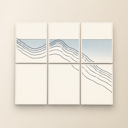
Realistic Quality Comparison: Home Tiled vs Lab Print
Honest comparison of what you get with home tiled photo printing versus a professional lab print:
Resolution. Lab prints at 300 dpi from a high-resolution source are sharper than home tiled prints from the same source — the lab printer typically has a higher native resolution and the lab’s colour management is calibrated. Home tiled prints in the 100-200 dpi range are visibly less sharp than lab prints, but at viewing distances of 1+ metre the difference becomes hard to see.
Colour. Calibrated lab printers produce more accurate colour than uncalibrated home printers. The difference is most visible for skin tones in portraits and for subtle gradations in skies and landscapes.
Surface and finish. Lab prints on professional photo paper have a quality that home glossy or matte paper can approach but not quite match. The paper itself is part of the experience.
Seams. The single most obvious quality difference. A lab print is a single sheet; a home tiled print has visible seams at every sheet boundary, however well aligned. Even with excellent margin compensation and trim quality, the seam structure is visible on close inspection. At normal viewing distance (1-2 metres), the seams become hard to see; at very close inspection, they are obvious.
Cost. A lab A1 print runs €40-80; a home tiled A1 print runs €5-15 in materials. Over a portfolio of prints, the cost difference is significant.
Speed. A lab print takes 1-7 days depending on the lab and shipping. A home tiled print takes 30-45 minutes plus assembly time.
The honest recommendation: home tiled photo printing is excellent for casual display, classroom or office use, and “decorate the wall this season” projects. For wedding photos, family portraits intended for long-term display, fine art reproductions, or anything you want to look its best, a lab print is the right choice.
For the broader workflow context, see how to print a large poster across multiple sheets on Mac for the general tiling walkthrough, how to assemble a multi-page poster with clean edges for the assembly side, and why printer margins matter for poster tiling for the geometry. The hub guide is the entry point.
FAQ
Can a phone photo really be enlarged to A1 size? Yes, with realistic expectations. A 12MP iPhone photo at A1 gives about 122-129 dpi, which is acceptable for distance viewing. Pixelation is visible on close inspection but not from a metre away. For higher quality, use a 24MP+ camera source.
What about A0 enlargement from a phone photo? Marginal. The dpi drops to 86-91, where pixelation becomes more visible. Use AI upscaling to improve, or accept that the print will be best at far viewing distances.
Should I use AI upscaling before tiling? For sources clearly under-resolved (under 80 dpi at the assembled size), yes — modern AI upscalers like Topaz Gigapixel AI or Adobe’s Super Resolution feature provide visible improvement. For sources already in the 100+ dpi range, the improvement is marginal.
What paper should I use for photo enlargement? Glossy or pearl photo paper (180-260 gsm) for vibrant photos in controlled lighting. Matte photo paper (120-180 gsm) for portraits and prints in well-lit rooms. Avoid plain copy paper for any photo where quality matters.
Pigment ink or dye ink for archival prints? Pigment ink with archival paper for long-term display (50+ years). Dye ink for casual display (5-25 years). For home printing, most consumer printers use dye ink; dedicated photo printers (Epson SureColor, Canon PIXMA Pro) use pigment.
How visible are the seams in a tiled photo print? At 1-2 metre viewing distance with good margin compensation and careful assembly, seams are visible only on close inspection. At very close range (under 30 cm), seams are obvious on any tiled print. For wedding photos or portraits intended for close viewing, a lab print is better.
Can I tile a hand-drawn artwork from a scanner capture? Yes. A 300 dpi flatbed scan of an A4 drawing is enough for A2 enlargement at 300 dpi or A1 at 200 dpi. For larger enlargements, use a higher-resolution scan or a higher-resolution camera capture.